Complete guide: your perfectly configured eSIM on iPhone
Follow this A to Z guide to travel with peace of mind: installation before you leave, setup once you arrive, and the right steps to take if something goes wrong. It should take you about ten minutes in total.
1. Before you leave: install your eSIM
Make sure you have a stable internet connection. The process can take up to 15 minutes.
1
Open the voilà app, then go to your eSIM page.
2
Tap "Install eSIM": you'll be redirected to your iPhone settings and the eSIM will download automatically.
3
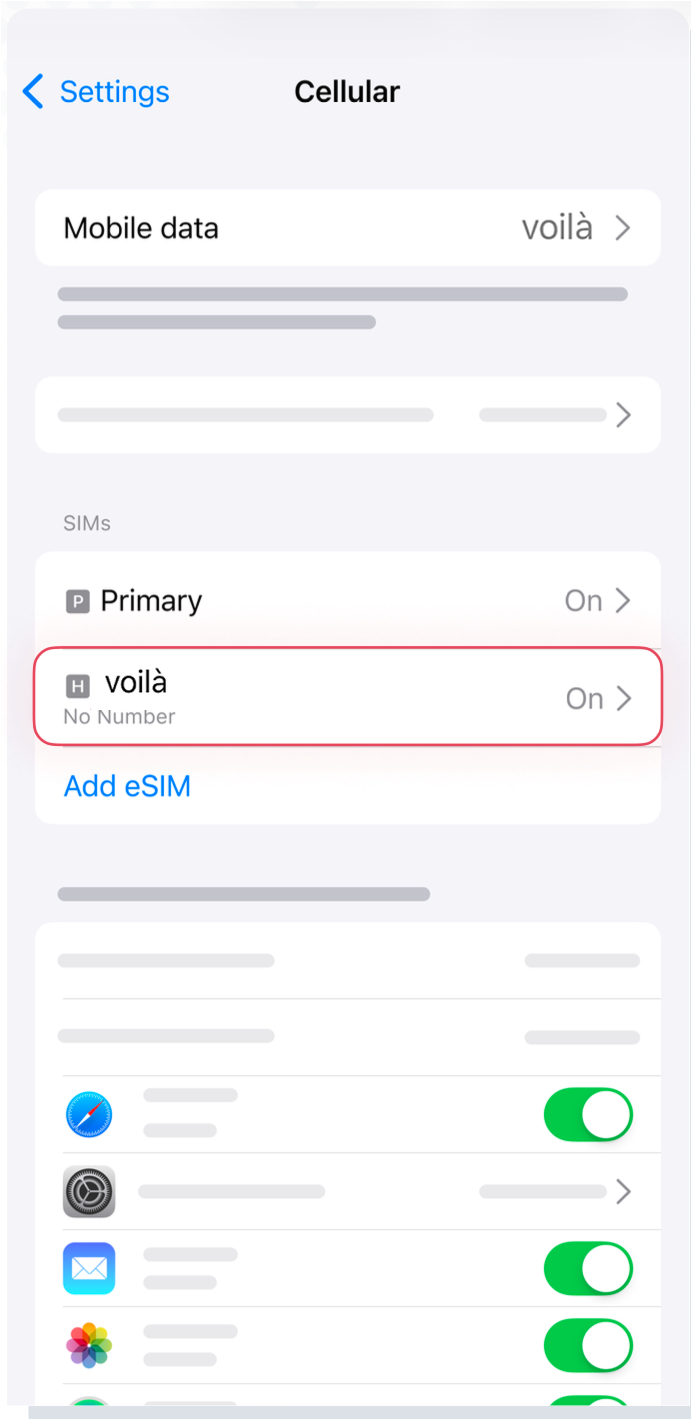
Once you've installed your eSIM, it will appear in Settings > Cellular Data.
4
Its name can be random: rename it with the name of your destination so you can remember it.
Is your eSIM showing the label "Activation..."?
Your eSIM is being installed: please wait a few minutes while staying connected to the internet.
2. Destination: set up your eSIM
This part must be done on the plane, or once you've arrived at your destination.
1
GB to Settings > Cellular Data and select the eSIM as your cellular data source.
2
Set your eSIM as your default line.
3
In your primary SIM settings, turn off the number.
4
In your eSIM settings, enable data roaming.